To post a Crazy Frog AI video, save the MP4, open TikTok, Instagram Reels or YouTube Shorts, upload the clip in 9:16 and optionally add the Axel F sound from the app's own sound library. Crazy Frog AI renders the clip silent and then adds the original sound of the viral TikTok trend clip under it, cut to 10 seconds. The Crazy Frog "Axel F" track is a commercial recording, and when you add it from inside the platform, the platform handles the music licence. This guide covers the sound, the format, caption ideas, AI labels and what to check before you post someone else's face.
The clip itself comes from one photo, one of six chase scenes and a quality choice. If you have not made one yet, the how-to page has the three steps, and the generator is where you start.
Key takeaways
- Every Crazy Frog AI video is an MP4 with the original sound of the viral trend clip. If you want the official Crazy Frog "Axel F" recording or another song, swap the sound inside the app you post to.
- Use 9:16 for TikTok, Reels and Shorts. Use 16:9 for YouTube and X.
- Label the clip as AI-generated where the platform asks. Realistic AI video is exactly what those labels are for.
- Post your own photo, or the photo of an adult who agreed. Ask first.
- Save the file within 24 hours. The download link expires.
Save the file before you do anything else
A render takes about five minutes. When it finishes, download the MP4 straight away: the link works for 24 hours, and the file is not kept for you after that. The file is called crazy-frog-ai.mp4 and has no watermark. Save it to the phone or computer you will post from, so you do not have to move it later.
Check the clip once on a full screen before you upload. If a wheel shows under the rider, the face looks off or the chaser overtakes you, there is no fix after the fact. The mistakes guide lists each fault with a one-move fix. A failed or blocked render returns its credits automatically, but a finished render uses them, and packs are not refundable, so look at the result before deciding to render again.
What sound the clip has
Every Crazy Frog AI render is made silent by the video model. After rendering, the site adds the original sound of the viral TikTok trend clip, the CapCut template clip the trend spread from, under the video and cuts it to the 10-second clip length. So every downloaded MP4 comes with that original sound, and there is no AI-generated sound in the file.
The song most people link to this trend is "Axel F" in the Crazy Frog version, a recording released in 2005 and a cover of Harold Faltermeyer's theme from the 1984 film Beverly Hills Cop. It is a commercial track with its own rights holders, and who holds which rights today is not settled. This site has not verified what is in the trend's original sound, so it does not claim that the sound is the official Crazy Frog recording. The Axel F page tells the story of the 2005 video behind the trend.
If you want the official Crazy Frog "Axel F" recording or another song instead, you can swap the sound inside the app when you post, from the library that platform has licensed. If you like the trend sound as it is, post the clip untouched.
Creators in the trend commonly add trending audio in an editing or posting app on top of the clip. That is the same approach, and it is optional here.
Add the Axel F sound in the app (optional)
The steps differ a little on each platform, and the apps change their menus often, so treat this as a map and not a manual.
TikTok. Upload the clip, then tap the sound option on the editing screen and search for "Axel F" or "Crazy Frog". Pick a version from the library, set the volume so it carries, and trim the start of the sound to match the launch of your clip. TikTok's library is meant for use on TikTok, which is why it is the safest place to add the track.
Instagram Reels. Start a Reel with your clip, tap the audio option and search the same two names. Reels shows the audio that Instagram has available to you, which can differ by country and by account type, so a version you see in a friend's feed may not appear in yours.
YouTube Shorts. Upload the clip as a Short and use the sound option in the Shorts editor to search the library. Availability varies by region here too, and personal and business channels can see different sounds.
A few notes that hold on all three:
- Search both "Axel F" and "Crazy Frog", because the names of uploaded sounds vary and no official sound name has been confirmed.
- Pick a sound from the platform library. Do not rip the song from a video, and do not upload your own copy of it, because then the platform's licence no longer covers it.
- If the version you want is missing, choose another or post without it. The clip with its own trend sound and captions still reads as the joke.
- Sounds can be removed from a library over time. If yours disappears, the clip itself is unaffected.
The clip's original sound is the trend clip's own audio, and no source this site has verified names a single official sound for the trend, so do not trust a post that claims one.
9:16 or 16:9
Crazy Frog AI renders in both shapes.
- 9:16 is the tall phone shape and the right one for TikTok, Reels and Shorts. It crops tighter on you, so your face and the crouch fill the screen. Pick this for almost every post.
- 16:9 is the wide shape and suits YouTube, X and a link in a chat. It shows more of the road, the buildings and the chaser, so the scene reads better as a picture.
The format is part of the render, so choose it before you press the button. A change means a new render at full credit cost: 10 credits at 480p, 22 at 720p and 40 at 1080p. If you want both shapes, plan for two renders.
For a phone feed, 480p is often enough on a small screen, and 720p or 1080p suits a clip you will watch on a large display or reuse on a bigger channel. A higher quality adds sharpness only, not accuracy, so it will not repair a drifting face. The pricing page has the full table and the packs: $9.99 for 10 credits, $24.99 for 30 and $69.99 for 100, with no free tier and no subscription.
Caption ideas
Short captions work best on a 10-second clip, and the clip carries the joke. A few directions you can adapt:
- Plain and deadpan. "Nothing under me, still faster than traffic." Understatement fits the invisible moped.
- Scene-led. Name the setting: "Office Escape, Friday edition", or "Aisle Dash: the shop closes in five minutes."
- Everyday joke. Tie it to a commute, a deadline or a group chat that is chasing you for a reply.
- Tag a friend. "Send this to the person who is always late." Keep it light and make sure that person agrees.
- Behind the clip. "One photo, no prompt, ten seconds." A line about how it was made often sparks questions in the comments.
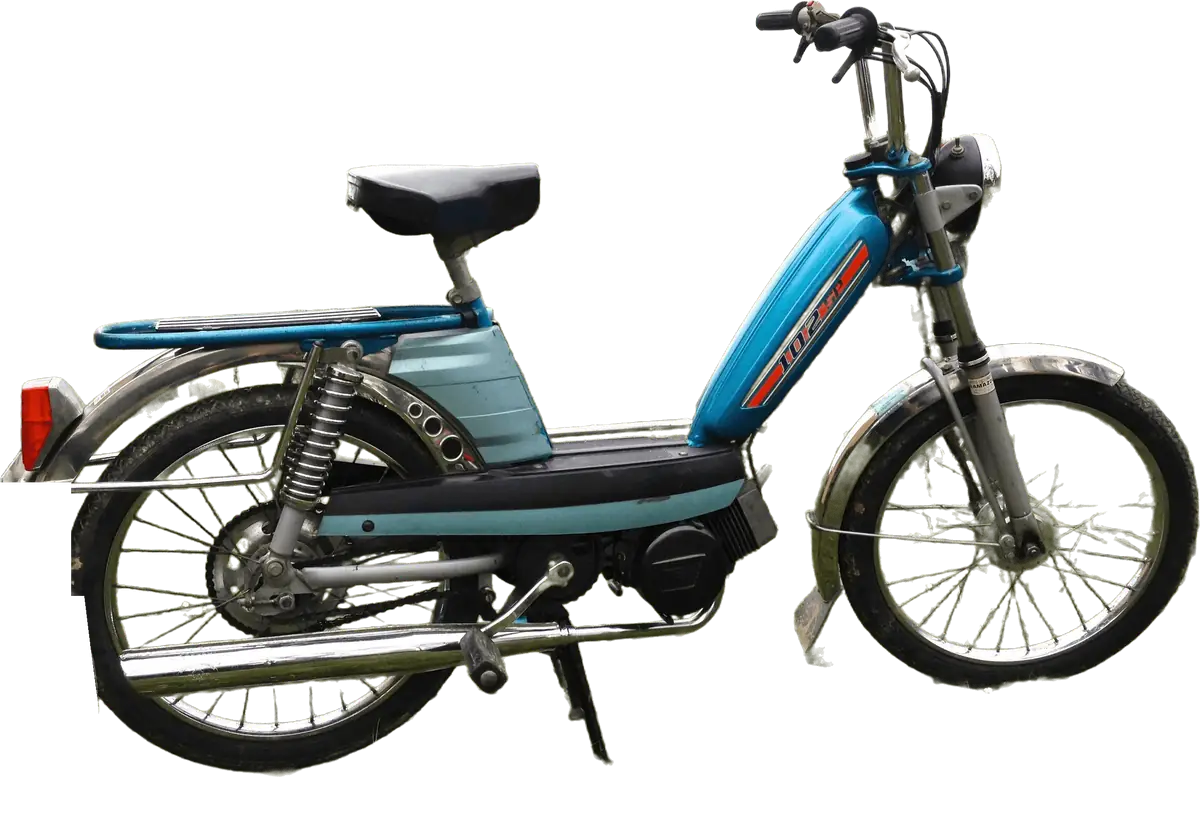
Whatever you write, avoid claiming the clip is real footage, and avoid using the name Crazy Frog as though your post were official. Hashtags help people find the trend. Using the trend names in plain words, such as the invisible bike or the Crazy Frog race, matches how people search. The trend explainer and the invisible bike page list the names in use.
AI labels on each platform
TikTok, Instagram and YouTube all ask creators to label realistic AI-generated content, and each has its own setting for it. The wording, the placement and the rules change over time, so this guide does not quote them. Look for an AI-generated or altered-content option in the upload screen of each app, and read the platform's current help page before you post.
A Crazy Frog AI clip is the kind of video those labels cover. It shows a real-looking person doing something that did not happen, on a moped that does not exist, chased by a character that never was. It is an obvious joke, but a joke does not remove the question, and a platform may add its own label if it detects AI content. Turn the label on yourself. It costs nothing, and it keeps your post honest.
You can also say so in the caption in plain words, for example "made with AI". Do not remove or hide any label the app adds, and do not describe the clip as filmed.
Consent and other people's photos
The face in the clip is the face in your photo. Use your own, or the photo of an adult who agreed to be in a public post. Ask before you upload, and ask again before you post, because agreeing to a private laugh in a group chat is not the same as agreeing to a public feed.
Crazy Frog AI does not accept celebrities, public figures or anyone under the minimum age, and pets have not been tested across the six scenes. Do not use a photo of a stranger, an ex, a classmate or a colleague who has not said yes. The Office Escape scene is popular for coworkers, which is fine when the coworker is in on it and not fine when they are not. If someone asks you to take a clip down, take it down.
Posting under your name also puts you in charge of what the clip implies. A funny chase is one thing, and a clip that mocks or embarrasses a person is another. When in doubt, use your own face.
A short posting checklist
- Download the MP4 within 24 hours and watch it full screen.
- Pick 9:16 for TikTok, Reels and Shorts, or 16:9 for YouTube and X.
- Optional: add the Axel F sound inside the app, from its library.
- Turn on the AI-content label where the app offers one.
- Write a short caption that does not claim the video is real.
- Check that everyone shown has agreed.
Crazy Frog AI is unofficial and not affiliated with Crazy Frog, its creators, its trademark owners or its record labels. If a render did not turn out the way you wanted, why copied prompts fail explains what is going on, and the race page covers the red bike version of the trend.
Frequently asked questions
How do I add the Axel F sound to a Crazy Frog AI video?
Add the Axel F sound inside TikTok, Instagram Reels or YouTube Shorts after you upload your Crazy Frog AI clip. The MP4 comes with the trend's original sound, so to swap it open the app's sound library, search Axel F or Crazy Frog, pick a version and trim it to the launch of the clip. The platform handles the music licence.
Is a Crazy Frog AI video 9:16 or 16:9 for TikTok and Reels?
Use 9:16 for a Crazy Frog AI video on TikTok, Instagram Reels and YouTube Shorts. Crazy Frog AI renders both 9:16 and 16:9, and the tall shape crops tighter on you for a phone screen. Pick 16:9 for YouTube or X. The format is part of the render, so choose it before you generate, since a change means a new render.
Do I need to label my Crazy Frog AI video as AI on TikTok or Instagram?
Yes, label your Crazy Frog AI video as AI where the app offers the option. Platforms ask creators to label realistic AI-generated content, and a Crazy Frog AI clip shows a real-looking person doing something that did not happen. Rules and wording change, so read each platform's current help page. Do not hide a label the app adds.
Can I post a Crazy Frog AI video of a friend?
You can use a friend's photo in Crazy Frog AI only with their permission. The site accepts your own photo or a photo of an adult who agreed to it, and does not accept celebrities, public figures or anyone under the minimum age. Ask before you upload and again before you post publicly. If they ask you to take the clip down, remove it.
Why does my Crazy Frog AI video have this sound and not the song?
Your Crazy Frog AI video has the trend's sound because the video model renders silent and the site then adds the original sound of the viral TikTok trend clip, cut to 10 seconds. It is not confirmed to be the official Crazy Frog Axel F recording. If you want that track or another song, swap the sound from the TikTok, Reels or Shorts sound library. The download link works for 24 hours, so save the file first.